192.168.70.1 Login – Du Router Access, Setup & Fixes (UAE)
Are you trying to open 192.168.70.1 address, but nothing is working? Many curious users face this problem when they want to change Wi-Fi settings or fix internet issues at home. This guide is written to help you in the easiest way possible.
192.168.70.1 is not a website. It is a router login address. Many Du users in the UAE use it every day without knowing its real purpose. So, don’t worry. Step by step, you will learn how to open it, how to fix errors, and how to safely manage your router. Keep reading!
What Is 192.168.70.1?
192.168.70.1 is a private IP address. It is used to open the router settings page. This page is also called the admin panel. You can only open it when your phone or computer is connected to the router. It does not work with mobile data. It does not work like Google or Facebook.
This address is mostly used by Du routers in the UAE. Some router models use different IPs. But many Du users see 192.168.70.1 as their main login address. When you open it, you can change the Wi-Fi name, password, and other settings. You can also check connected devices.
Common Mistake: https://192.168.l.70.1
Many people type the wrong address. This is very common. The biggest mistake is typing 192.168.l.70.1 instead of 192.168.70.1. The letter “l” looks like the number “1”. But they are not the same.
Also, some users type https instead of http. Some routers do not support secure HTTPS. This causes warning pages or errors. This can confuse new users.
Common typing mistakes:
- Using the letter “l” instead of the number “1.”
- Missing dots
- Writing it in Google search
- Using https instead of http
Correct way:
- Type http://192.168.70.1
- Use the browser address bar
- Do not use the search box
Once typed correctly, the page opens easily. So, always check spelling first. This simple step solves most problems.
Also check: “DPI Test Center In Dubai “/ “NBAD Balance Check“/ “NOL Card Balance Check“/ “Best Schools in Sharjah
How to Login to 192.168.70.1?
First, make sure your device is connected to the router. You must connect using the same Wi-Fi network or an Ethernet cable. Mobile data will not work.
- Open any web browser such as Chrome, Edge, or Firefox.
- Click on the address bar at the top of the browser.
- Type “http://192.168.70.1” and press Enter.
- Wait for the router login page to open.
- Enter the username (usually admin or user).
- Enter the password (printed on the router sticker).
- Click the Login button.
- The router dashboard will open.
- Go to settings to change Wi-Fi name, password, or other options.
- Click Save or Apply after making changes.
- Log out when finished to keep your router secure.
Du Home Wireless 5G (ZLT X21) Login Guide
Follow the steps below carefully. They are simple and easy.
Login Method: Step-by-Step
- Make sure the ZLT X21 router is powered on.
- Connect your mobile, laptop, or computer to the Du Wi-Fi network.
- You can also use an Ethernet cable for a stable connection.
- Open a web browser such as Chrome, Edge, or Firefox.
- Click on the address bar at the top.
- Type http://192.168.70.1 and press Enter.
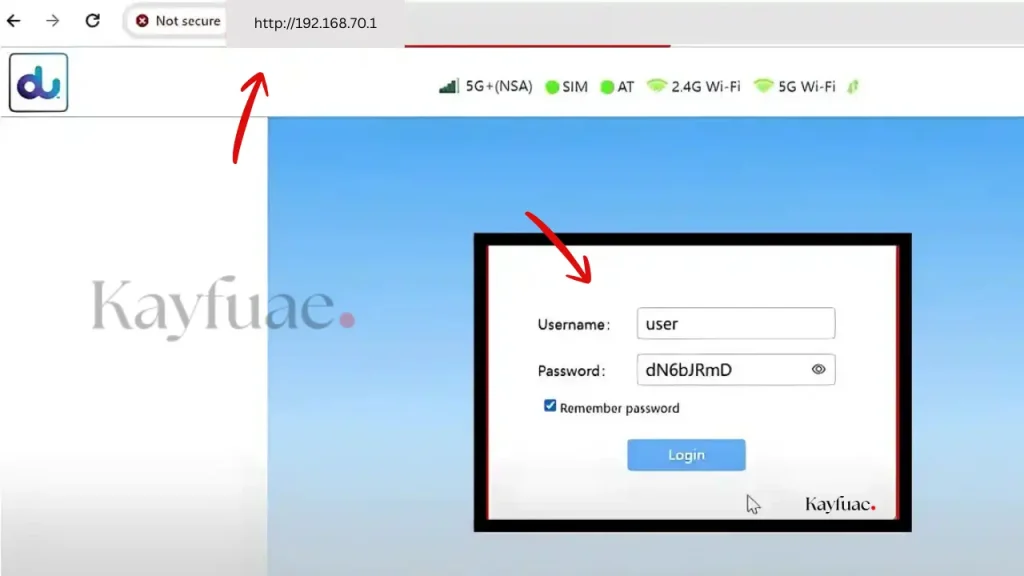
- Wait for the login page to load.
- Enter the login details:
- Username: user
- Password: Check the sticker on the back of the router
- Click on Login.
Change Wi-Fi Name and Password (ZLT X21)
- After logging in, the dashboard will open.
- Go to Wi-Fi Settings.
- Select WiFi-2.4G Settings or WiFi-5G Settings.
- Find the SSID field (this is your Wi-Fi name).
- Enter a new Wi-Fi name.
- Find the Password / WPA Key field.
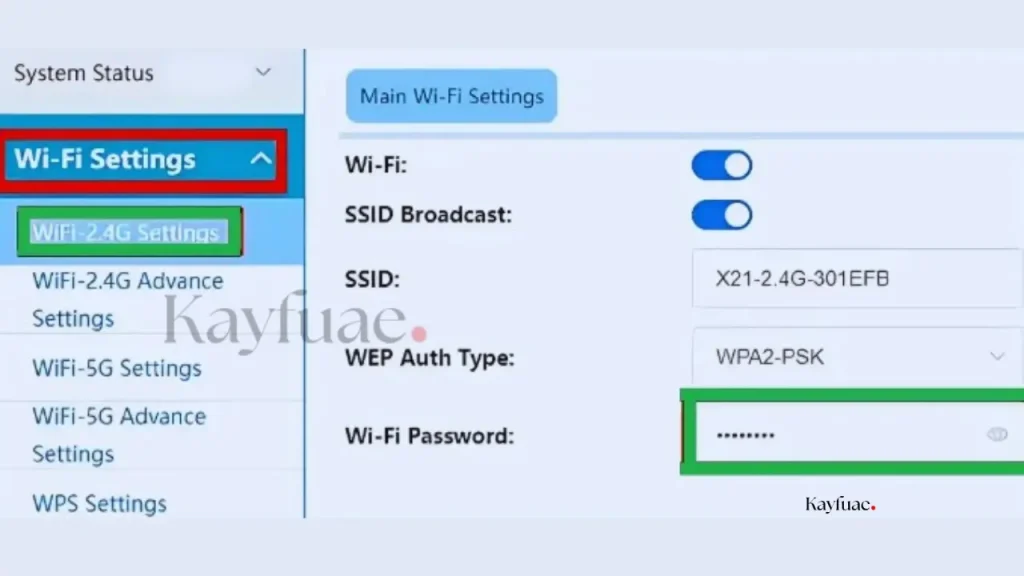
- Enter a strong password.
- Click Save or Apply.
- The Wi-Fi may restart for a few seconds.
- Reconnect your devices using the new details.
D-Link DWR-M960 Router Login
Some Du users use D-Link routers. These routers usually do not use 192.168.70.1. Instead, they use 192.168.0.1. This difference is important.
- Turn on the D-Link DWR-M960 router.
- Connect your phone, laptop, or computer to the D-Link Wi-Fi network.
- You can also use a LAN cable for a stable connection.
- Open any web browser like Chrome, Edge, or Firefox.
- Click on the address bar at the top of the browser.
- Type http://192.168.0.1 and press Enter.
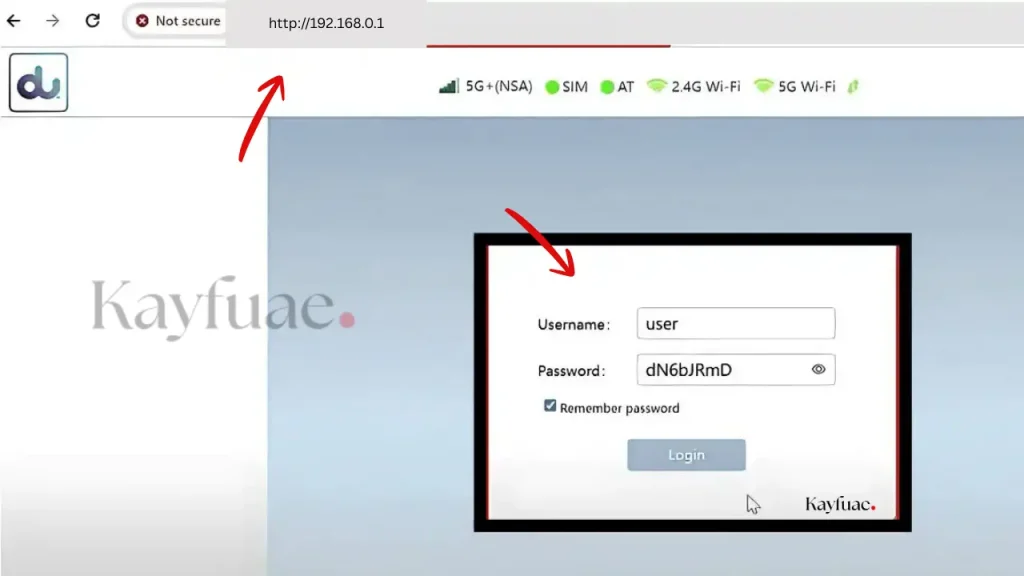
- Wait for the router login page to load.
- Enter the default login details:
- Username: admin
- Password: admin
- Click the Login button.
- The router dashboard will open.
- Go to Settings > Wi-Fi > Basic to change Wi-Fi name.
- Go to Settings > Wi-Fi > Security to change Wi-Fi password.
- Click Save & Apply after making changes.
- Reconnect your devices using the new Wi-Fi details.
Also check: “Hafilat Card Balance check“/ “ILOE Insurance Fine Check“/ “Fishing License in Dubai“/ “Emirates ID Biometric Centers“
How to Change the Du Wi-Fi Name and Password
Follow the given steps below:
- Log in to the router admin page
- Go to Wi-Fi Settings
- Choose 2.4GHz or 5GHz
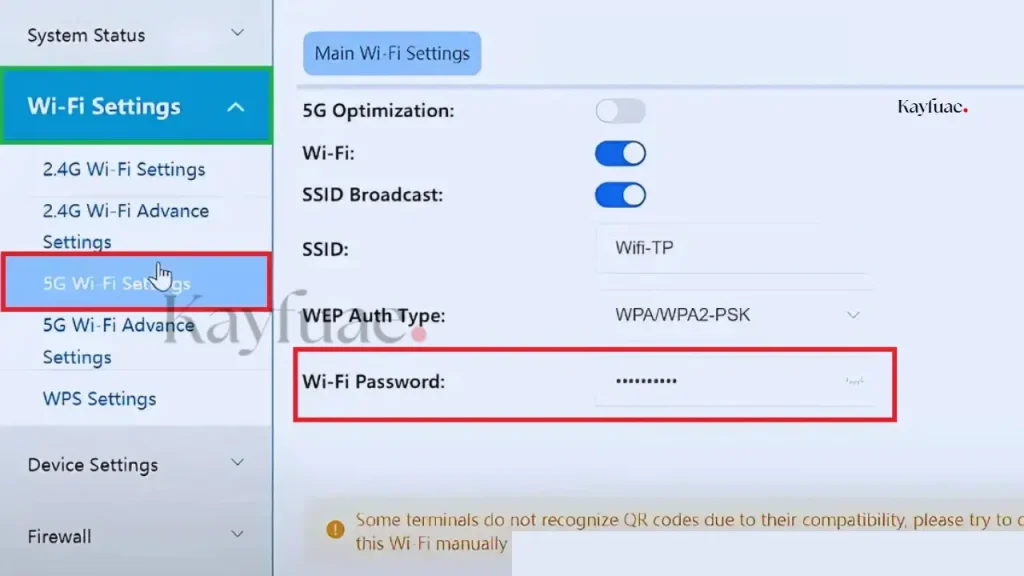
- Change SSID (Wi-Fi name)
- Enter a new password
- Click Save or Apply
- Reconnect devices with new details
Doing this keeps your Wi-Fi secure and prevents unauthorized access.
Troubleshooting 192.168.70.1 Login Issues
Sometimes the login page does not open. This can be frustrating. Many problems are simple to fix. The first step is to check your connection. Make sure your device is connected to the router Wi-Fi or via Ethernet. Mobile data will not work.
Next, check the IP address. Some users type 192.168.l.70.1 by mistake. The letter “l” is wrong. Always type 192.168.70.1 correctly in the browser address bar. Also, try using http instead of https if the page does not load.
Resetting the Du Router Safely
Sometimes you forget your login details or your settings get corrupted. In that case, a factory reset can help. Resetting restores the router to its original default settings. After that, you can log in with the default username and password.
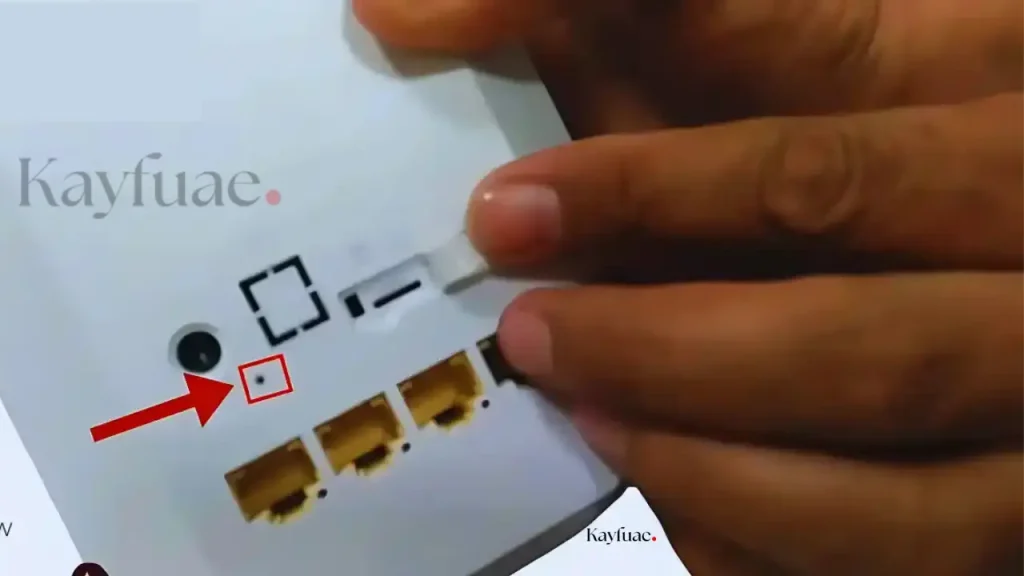
To reset, locate the small reset button on the back of the router. Use a pin to press and hold it for 10–15 seconds. Wait for the lights to blink or change, showing the router has restarted. After the reboot, reconnect your device to the default Wi-Fi network.
FAQs
Conclusion
192.168.70.1 is the main router login address for many Du users in the UAE. With the correct steps, it is very easy to use and manage. You only need the right IP, correct login details, and a stable connection.
It helps you control your internet, change Wi-Fi settings, and fix problems fast. Follow this guide carefully, and you can manage your router without stress.